

Laptops have come a long way, from essential laptop functions to gaming machines that can go head-to-head against a desktop laptop. If there is one thing that can drastically reduce the performance of a computer, it is overheating. Heat can cause CPU, GPU, RAM, SSD, and other hardware to start thermal throttling and underperform. So, how do we keep our laptops cool?
This blog will explore the gaming laptop overheating solution. It will also guide in diagnosing which hardware may be causing the laptop to malfunction or underperform. Some solutions include undervolting for better thermals, reapplying thermal paste, cleaning internals, improving airflow, and reducing workload. Ultimately, we will mention some top laptop cooling products for gamers who need their hardware running at maximum performance.
Diagnosing the Overheating Culprit: A Detective’s Guide to Cooler Performance
Before diving into the cooling solutions, we must determine which hardware is the culprit. Is it the CPU, GPU, RAM, VRM, or the SSD? Or is the laptop underperforming overall due to improper ventilation or software overload? Let’s start the diagnosis!
Unmasking the Suspect: Identifying the Hardware Causing the Heatwave
It’s important to know that not all laptops feature thermal measurements on every piece of hardware. So, there will be some improvisation on components without temperature readings.
First, we must use software to provide the readings from each temperature sensor on the laptop. There are two software that are most popular among gamers:
- Speccy: It’s an easy, straightforward, and free-to-use software that will provide all the significant details in a glimpse. Speccy will list every laptop hardware with a thermal sensor on its front page.
Users can leave Speccy running in the background while they play their game to check which component is causing the game framerates to drop. Is the temperature reaching 90C, or is any other component going to 100% utilization? Identify the culprit!

- HWiNFO: If you are looking for advanced hardware information software, then HWiNFO is the way to go. It provides an option to select Sensors only for details on all the hardware sensors on a single window. Gamers can utilize it to determine whether temperature or clock speeds are causing the laptop performance issues.

CPU, GPU, RAM, SSD: Which is Pushing the Limits?
Here is a step-by-step guide to pinpoint the hardware that is causing the overheating laptop situation:
- Start the software and watch the thermals under idle, load, and maximum conditions. The average temperature of a gaming laptop hardware should be within the limits in the table below.
| Component | Idle (°C) | Load (°C) | Maximum Safe (°C) |
| CPU | 30 – 50 | 60 – 80 | 90 – 100 |
| GPU | 30 – 50 | 60 – 80 | 85 – 100 |
| RAM | 30 – 50 | 50 – 80 | 95 – 105 |
| SSD | 30 – 50 | 40 – 60 | 70 – 80 |
| VRM | 30 – 50 | 60 – 85 | 100 – 115 |
- If a component reaches maximum safe temperatures, it causes performance or overheating laptop issues.
- Start your game and keep the diagnostic software running in the background so that it keeps track of the changes.
- Observe which hardware is reaching its 100% utilization mark.
- Check to see if the same hardware is also reaching high temperatures.
- It has a heat transfer issue if the same hardware reaches 100% utilization and high temperatures. You may need a laptop cooling pad or overheating gaming laptop solutions.
- If you see 100% utilization and no high temperatures for the same hardware, then it’s okay. You need to upgrade that component to see a performance boost.
- Also, watch the rising temperature trend of all the hardware components. If they rise rapidly and reduce very slowly, you need a laptop cooling pad or have ventilation issues.
- After diagnosing the hardware problem, we can move to the cooling solutions in the next section.
- If there were no hardware problems, it might be just the software issue, which we will cover in the following sub-section.
Software Cleaning: Uncovering Hidden Processes and Resource Hogs
Some of us have loads of software running in the background, which can directly affect the laptop’s performance and increase its idling temperature. To see what unwanted applications are running in the background, follow these steps:
- One of the easiest methods is to press the Ctrl+Alt+Delete keys together to bring up a screen providing options to click. Select Task Manager.
- Utilization percentages will appear on top of each column under the processes tab.
- Observe which software is utilizing the most laptop resources in the background.
- Right-click the process and press “End task.”
- Observe the utilization percentage in task manager and laptop temperature trends from others.
- If your laptop performance improves after ending multiple background tasks, decide whether you want those applications on your laptop.
- Delete the unwanted applications or use application settings to stop them from running in the background when Windows starts.
Cooling Solutions: From DIY Fixes to High-Tech Upgrades
Let’s get your laptop running cooler with unique, standard solutions that most gamers utilize. If your computer is overheating or suddenly started to lag on the same game you have been playing for months, then you need a cooling solution. Here are our top 5 cooling solutions for your overheating laptop:
-
Undervolting: The Art of Taming the Power Beast
Modern laptops come with overclocking options. You can overclock your RAM, CPU, and GPU to higher frequencies for better performance. Why Not! Gamers buy and sell their game accounts on trusted marketplaces like Eldorado. Its business and the dropping framerates are a big hurdle in progress.
Generally, the performance boost by overclocking your laptop will not be proportional to the heat produced. The heat production dramatically increases with boost frequencies. Every manufacturer has a unique way to overclock their product. So it’s essential to follow the manufacturer’s guidelines to reduce the intensity of the overclock to improve your thermals.
Some gamers buy high-end computation devices and underclock their hardware to prolong components’ life, reduce heat, and improve efficiency. Overall, undervolting for better thermals is the best way to go if you do not have performance issues but heat issues only.
-
Thermal Paste: A Refreshing Renewal for Optimal Heat Transfer
When two metal surfaces come in contact to transfer heat, air or other non-conductive material can be between the surfaces at the micrometer level. So we need thermal paste.
Applying thermal paste in laptops can be tricky, so be sure to have technical supervision or get thermal paste used by a certified professional. If you are tech-savvy and confident in your skills, look for YouTube tutorials for your laptop.
-
Deep Clean: Banishing Dust and Thermal Demons
Dust is the greatest enemy of any laptop hardware. It can cause hardware damage, decrease airflow, and cause thermal throttling. To see if your laptop has a dust problem, analyze the vents and air intake after identifying their location.
Use a high-air velocity blower or a simple old toothbrush to remove accumulated dust. Remember to ensure your system is “OFF” when performing the activity. The dust should come from the vents and fan, not go inside.
-
Airflow Revolution: Creating a Breezy Haven for Your Laptop
Always use your laptop in a proper airflow location. Placing the laptop on a pillow or bed is the worst thing a user can do to their hardware. Ensure you use your computer on a flat surface, allowing all the rubber stands to maintain a decent distance between the surface and the laptop for airflow.
-
Workload Reduction: Giving Your Hardware a Breather
We discuss workload reduction through software in the previous section. Another way to reduce workload is by dividing it into two devices. If you are streaming and gaming simultaneously, your laptop overheating issues will start. Use a streaming device separately and another mid-range PC to do the job. Do this for any other process that you have running on the laptop.
Top Cooling Products for Gamers: Keeping Your Rig Ice-Cold
Here are the top products that can enhance your laptop’s cooling. They are as easy as plug and play with the capability to reduce the laptop’s operating temperature by 20°C.
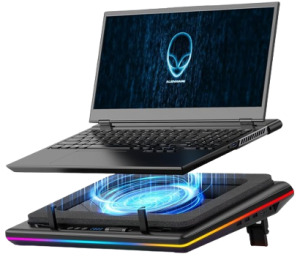
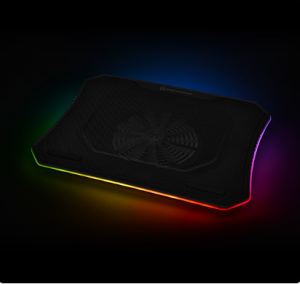
Laptop Cooling Pad: Thermaltake Massive 20 RGB
Thermaltake’s laptop cooling pad works through a simple USB connection! What else do we need? It features a 200mm fan for laptops reaching up to 19” in dimensions. The decent 0.4 mm-H2O static pressure is sufficient to push and pull air adequately to ensure proper heat transfer. Thermaltake Massive 20 RGB features the most basic cooling requirement within a decent price tag.
Key Features:
- Plug and Play Configuration
- 600~800 R.P.M Fan Speed
- 30 dBA Noise Lower than Average Laptop
- 256 Color RGB Lighting

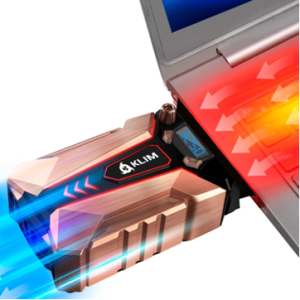
Vacuum Cooler: KLIM Cool + Vacuum Laptop Cooler
Siphon away the laptop heat like a pro using a vacuum cooler. The fan inside the tiny device can reach up to 4500 rpm. Gamers can use KLIM Cool + Vacuum Laptop Cooler to enhance gaming performance without taking apart the whole laptop. Under lab conditions, the cooler can reduce 20.7°C using its metal body and fast fan.
Key Features:
- Pocket-Size 4.7” dimension
- Easy to Carry 155g Weight
- 5 Year Warranty
- Fits all Laptop between 10-19”


Conclusion: The Benefits of Optimal Laptop Temperature
Reducing the laptop’s temperature through hardware, software, or external gadget tricks can ensure longevity. An overheating laptop can lead to lag and stuttering, which can be fatal in competitive conditions. The boost in performance can help you become a pro gamer and continue to build your career selling Rainbow 6 accounts and other digital goodsusing a trusted marketplace like Eldorado.
We hope you find the perfect solution for your laptop. May your hardware run longer and stronger than ever after applying tricks from the guide?
